¿Cómo arreglar la pantalla negra de Game Capture OBS?

OBS Studio (Open Broadcaster Software) has become the go-to tool for gamers, streamers, and content creators worldwide. Its powerful Game Capture feature allows users to record or stream gameplay in high quality while minimizing unnecessary background distractions. However, a frustrating problem many users face is the infamous black screen when trying to capture their game. This issue can interrupt streams, ruin recordings, and waste hours of preparation. In this article, we’ll explore why this happens and how you can fix it.
1. Why OBS Game Capture Shows a Black Screen?
Before jumping into solutions, it’s essential to understand the common reasons OBS shows a black screen:
- GPU Conflicts on Laptops
Many laptops come with two graphics processors: an integrated GPU (Intel/AMD) and a dedicated GPU (NVIDIA/AMD). If OBS runs on one GPU while the game runs on another, Game Capture cannot properly capture the game, resulting in a black screen. - Administrator Privileges
OBS and the game must run with compatible permissions. If your game runs as administrator but OBS doesn’t, or vice versa, OBS may fail to capture the game window. - Fullscreen Mode vs. Windowed Mode
Some games, especially those with anti-cheat systems like Valorant, Apex Legends, or Fortnite, block screen capture in exclusive fullscreen mode. Game Capture often fails, producing a black screen. - Capture Settings
OBS offers multiple capture modes, such as “Capture any fullscreen application” and “Capture specific window.” Using the wrong mode for your game can prevent OBS from displaying your gameplay. - Conflicting Overlays or Software
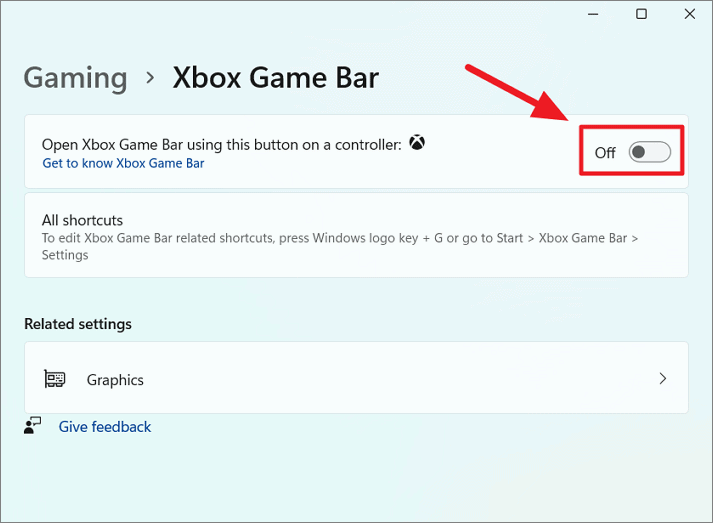
Overlays like Discord, GeForce Experience, Xbox Game Bar, or other recording tools can interfere with OBS Game Capture. Antivirus programs or system optimizations may also block capture.
2. How to Fix Game Capture OBS Black Screen?
Here are proven methods to resolve the OBS game capture black screen issue:
2.1 Check GPU Settings
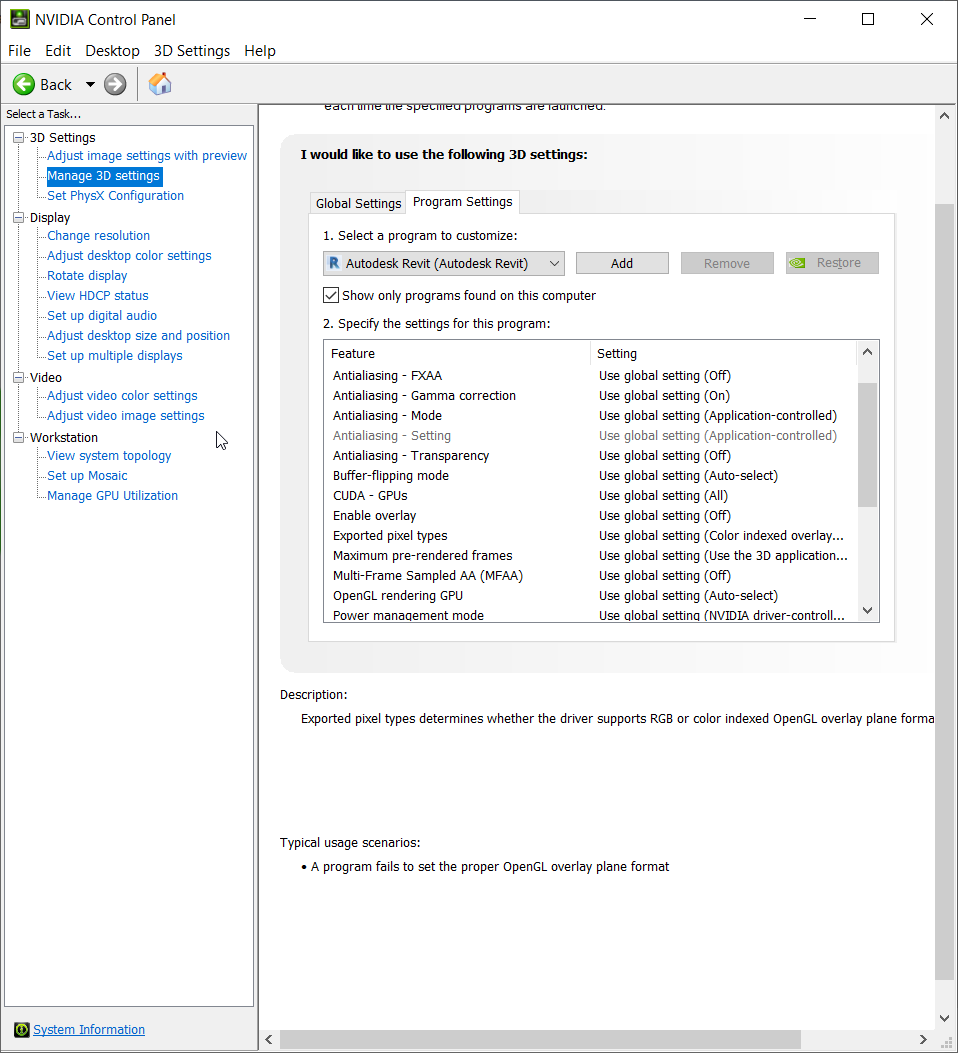
For laptops with dual GPUs, ensure both OBS and your game run on the same GPU .
- NVIDIA:
- Launch NVIDIA Control Panel → Elegir Administrar la configuración 3D → Switch to Program Settings.
- Add OBS Studio and set it to High-performance NVIDIA processor .
- Ensure your game also uses the NVIDIA GPU.
- AMD:
- Abierto Radeon Settings → Switchable Graphics .
- Assign OBS Studio to High Performance .
- Verify your game uses the dedicated GPU.
2.2 Ejecutar OBS como administrador
If your game runs as administrator, OBS must too:
- Right-click OBS Studio → Ejecutar como administrador .
- Relaunch the game and try Game Capture again.
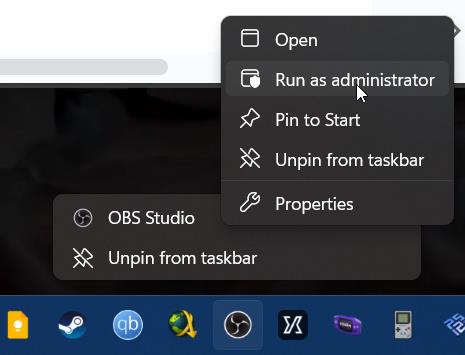
This ensures both applications have the necessary permissions to communicate.
2.3 Adjust Capture Mode
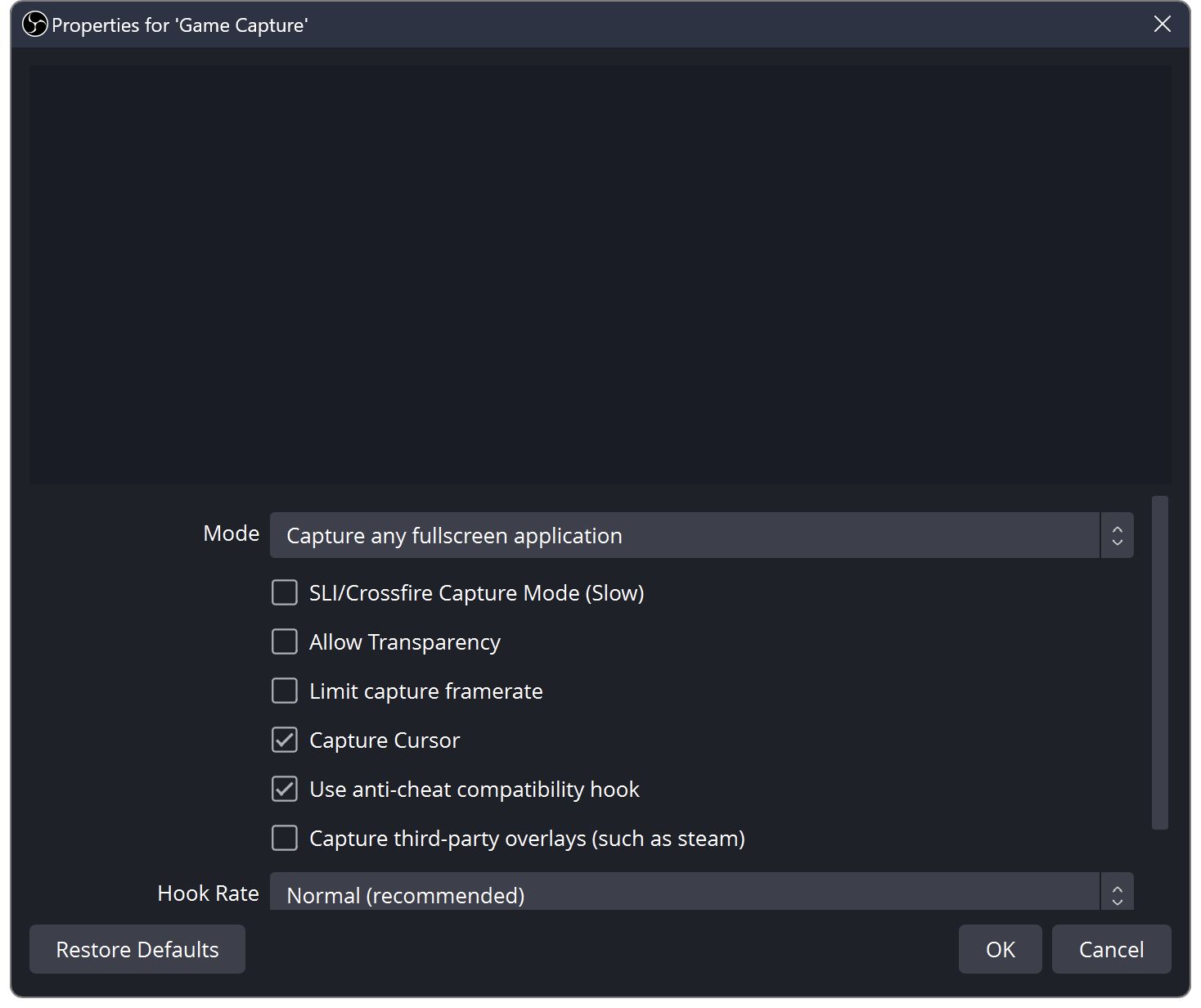
- Abrir OBS → Captura de juego → Propiedades → Modo .
- Switch between:
- Captura cualquier aplicación en pantalla completa
- Capturar ventana específica
- For games with anti-cheat, select Capturar ventana específica and choose the exact game executable.
2.4 Use Borderless or Windowed Mode
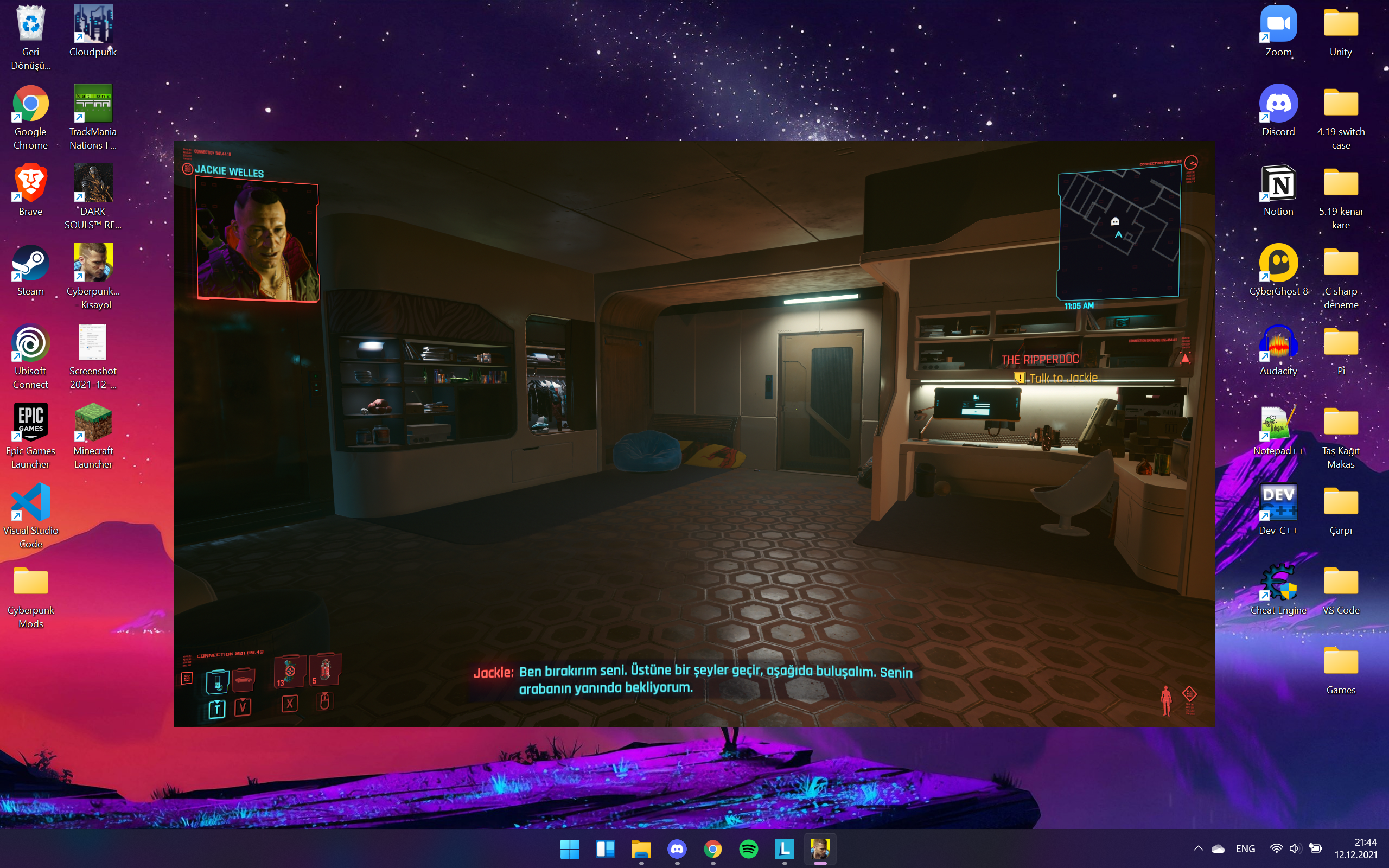
- Some fullscreen games prevent OBS from capturing properly.
- Switch your game to borderless windowed mode or standard windowed mode.
- This simple change often fixes the black screen without any other configuration.
2.5 Disable Conflicting Overlays
- Turn off overlays like:
- Discord Overlay
- NVIDIA GeForce Experience Overlay
- Barra de juegos de Xbox
- Other recording software running in the background
- Check antivirus or system optimization software to ensure they aren’t blocking OBS capture.
2.6 Alternative Capture Methods
If Game Capture still fails:
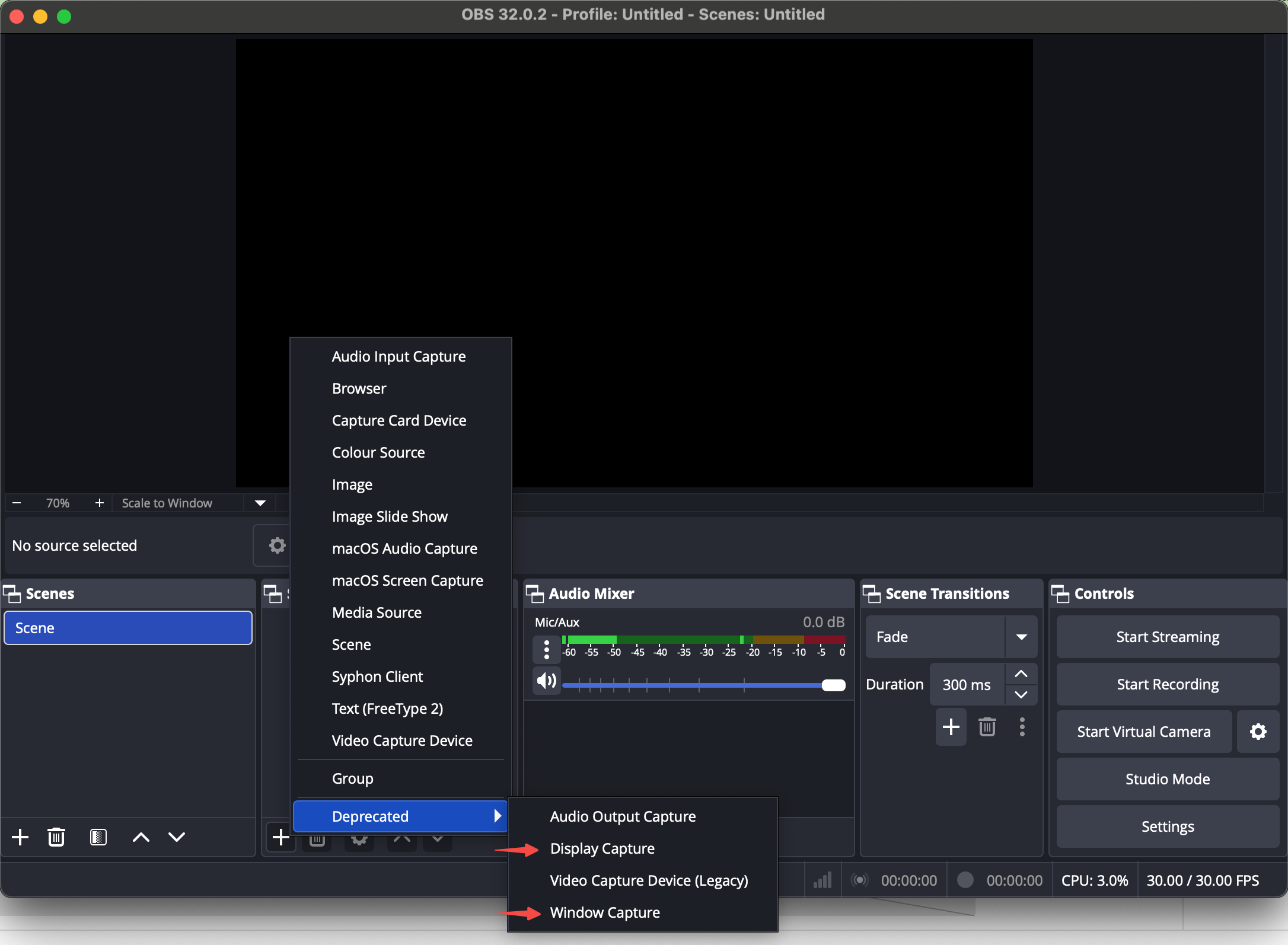
- Display Capture: Captures your full screen. Works for all games but may include the OBS window if not configured properly.
- Window Capture: Captures the game window but may not support exclusive fullscreen.
While these methods work, they may reduce performance or flexibility compared to Game Capture.
3. Record Without Black Screen Using Swyshare Recordit
For users who want a simpler, more reliable recording experience, Swyshare Recordit is an excellent alternative. Unlike OBS, Recordit avoids black screen issues entirely while providing high-quality recordings.
Why choose Recordit :
- Work reliably without GPU or overlay conflicts.
- Customize to record area, input resources and output format/resolution/file location.
- Schdule recording at extract start and stop time.
- Record gameplay highlights or full sessions with ease.
- Instantly export recording in popular MP4 and more formats.
- Take screenshots even when capturing gameplay.
How to record gaming with Recordit :
- Conseguir Recordit ’s Windows or Mac version from the official site and complete installation.
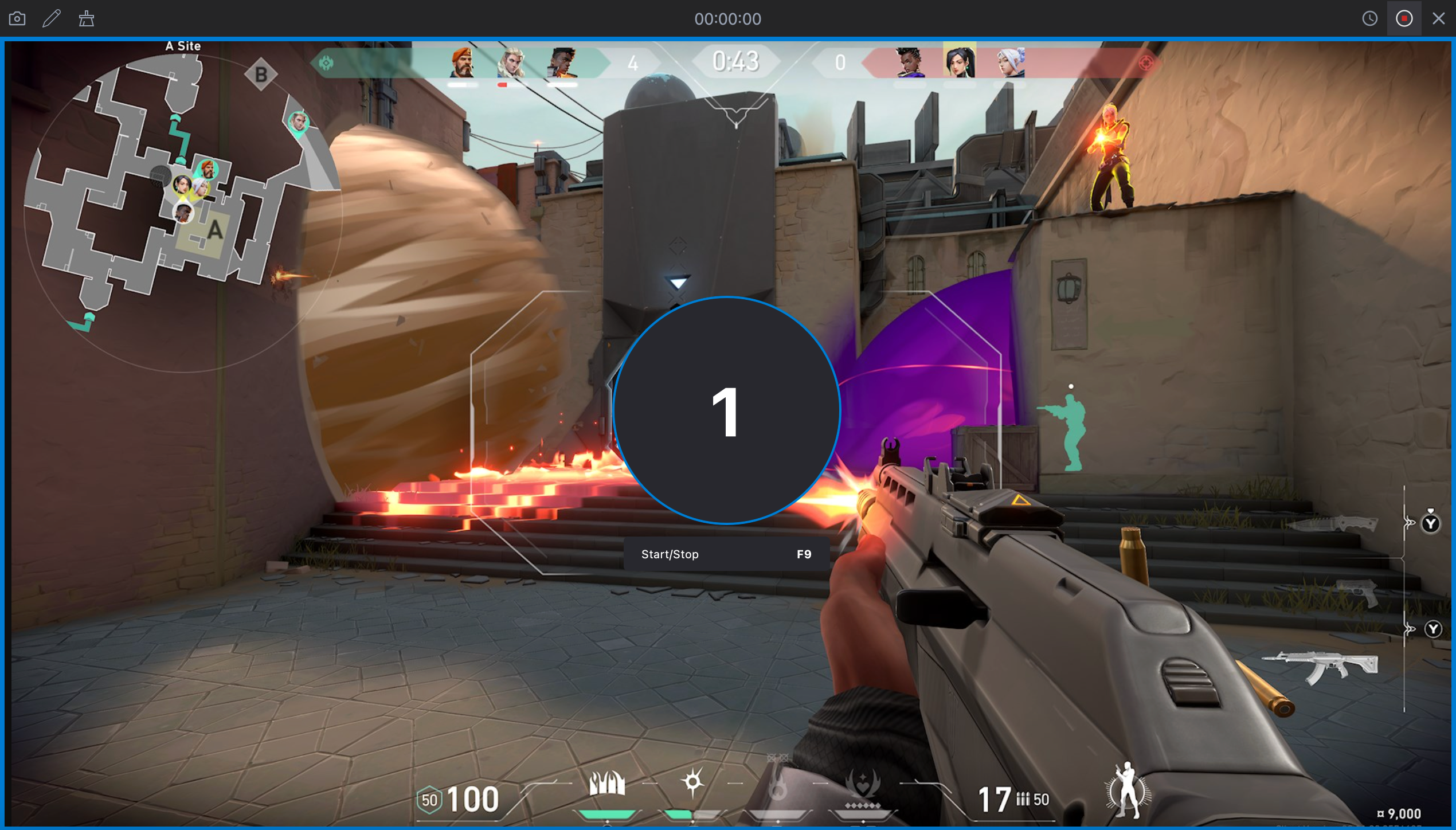
- Open Recodit before starting your game, then select recording area and adjust settings (Optional) – set video quality, format, or audio input.
- Click the Start Recording button and start your game.
- Optional: Record last ** seconds of gameplay or schedule start/stop times.
- Click Stop Recording when done, then find the file within the “Files” tab.
4. Conclusión
The OBS Game Capture black screen can be frustrating, but it’s usually fixable with the right settings. Checking GPU allocation, running OBS as administrator, switching capture modes, using borderless/windowed mode, and disabling conflicting overlays can solve most problems.
However, for users who want a faster, hassle-free recording solution, Swyshare Recordit is highly recommended. It ensures smooth gameplay recording without black screens, complicated settings, or software conflicts. Whether you’re a casual gamer, streamer, or content creator, Recordit makes recording reliable, simple, and stress-free.