How to Resolve OBS Preset Causing My Video to Lag?

OBS Studio is one of the most powerful tools for streaming and recording gameplay, widely used by creators on platforms like Twitch and YouTube. However, many users run into a frustrating issue: video lag caused by improper preset settings.
If your stream or recording appears choppy, stutters, or drops frames, there’s a good chance your OBS preset is too demanding for your system. This problem is especially common when recording or streaming fast-paced games, where both your system and encoder are already under heavy load.
In this guide, we’ll explain why OBS presets can cause lag and show you exactly how to fix the issue step by step. We’ll also introduce a simpler alternative for users who want smooth recording without the complexity of OBS.
1. Why OBS Preset Causes Your Video to Lag?
The “preset” in OBS determines how much effort your system puts into encoding video. Whether you’re using a CPU encoder (x264) or GPU encoder (NVENC), presets directly impact performance.
1.1 Presets Control Encoding Complexity
Higher-quality presets (like Máxima calidad o slow ) use more advanced compression techniques. While they improve visual quality, they also:
- Require more CPU or GPU power
- Increase encoding time per frame
- Can overload your system during gameplay
When your hardware can’t keep up, OBS starts dropping frames or stuttering.
1.2 CPU Overload (x264 Encoder)
If you’re using x264, the preset determines how hard your CPU works.
- Slow/Medium presets → High CPU usage → Better quality
- Veryfast/Superfast presets → Lower CPU usage → Slightly lower quality
If your CPU is already busy running a game, using a slow preset will almost always result in encoding lag .
1.3 GPU Overload (NVENC Encoder)
For users with NVIDIA GPUs, NVENC is usually the better option. However, presets like Máxima calidad can still cause problems.
- High preset + high in-game graphics = GPU hits 100%
- OBS can’t render frames in time → rendering lag
1.4 High Motion Content Makes It Worse
Fast-paced games (FPS, racing, action) generate more visual changes per frame. This increases encoding demand, making preset issues more noticeable:
- More motion = more data to encode
- Higher chance of lag if preset is too demanding
1.5 Combined Settings Overload
Even if your preset alone isn’t the issue, it can become a problem when combined with:
- High resolution (1080p)
- High FPS (60 FPS)
- High bitrate
- Background applications
All of these together can overwhelm your system.
2. How to Resolve OBS Preset Causing Video Lag?
Now that you know the cause, here are the most effective fixes.
2.1 Choose the Right Preset
For NVENC (Recommended)
- Set preset to: Calidad
- Avoid: Máxima calidad (unless you have a high-end GPU)
If lag continues:
- Switch to Performance preset
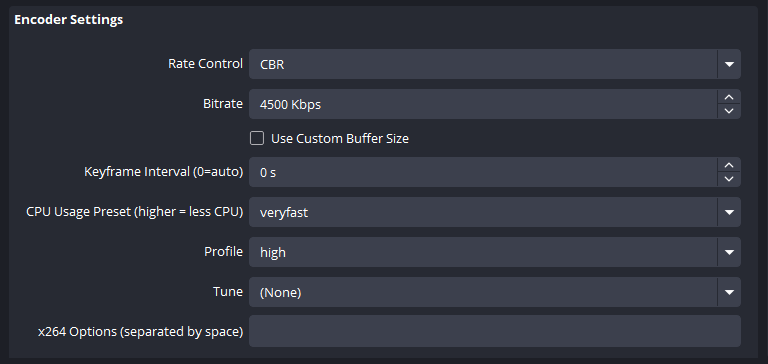
For x264 (CPU Encoding)
- Usar: veryfast (best balance)
- If needed: superfast
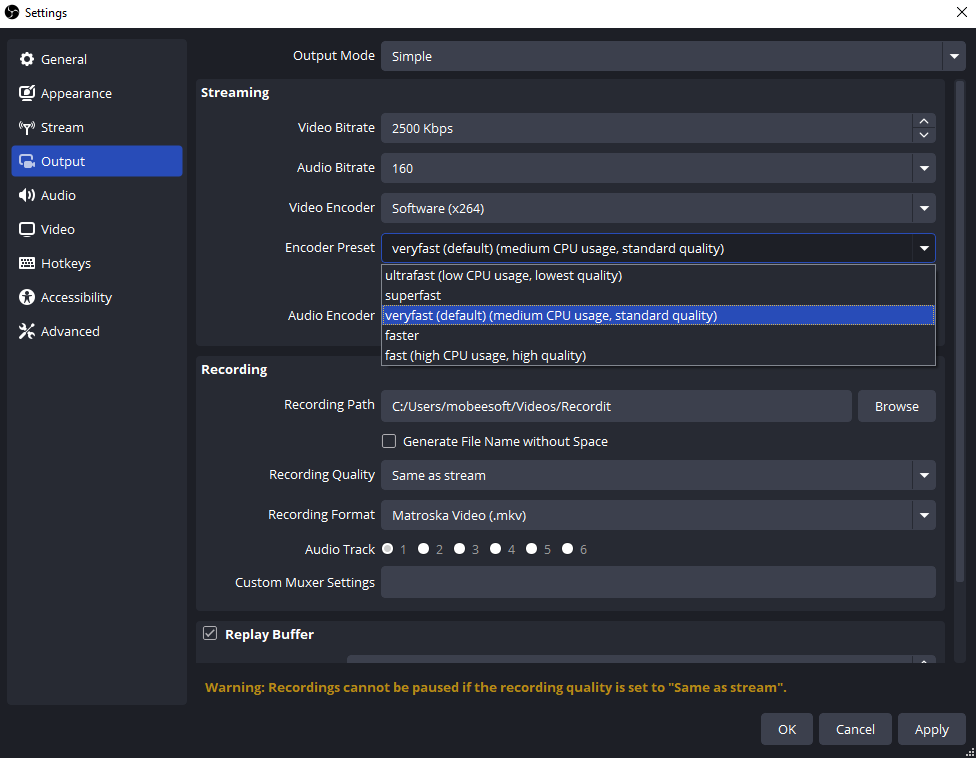
Avoid slower presets like medium o slow while gaming.
2.2 Reduce Output Resolution
High resolution increases encoding load significantly.
- Best option: 1664×936
- Safer option: 1280×720
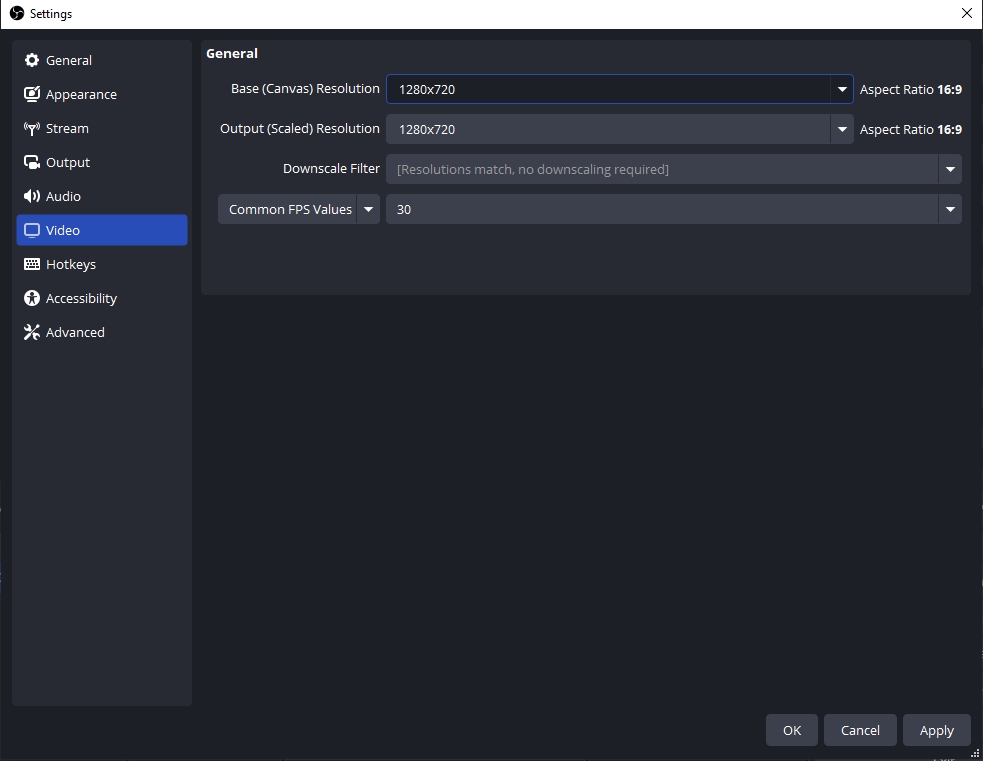
Downscaling reduces lag while maintaining good visual quality.
2.3 Lower GPU/CPU Load
- Reduce in-game graphics settings
- Limit in-game FPS (e.g., cap at 60 or 120)
- Close unnecessary background apps
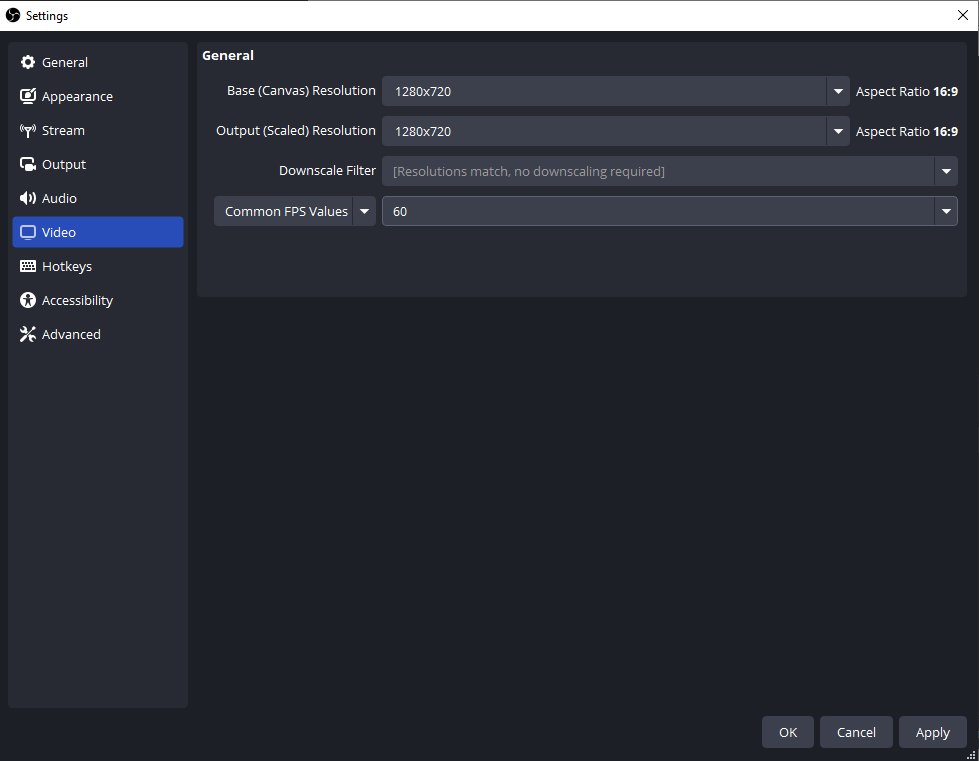
This frees up resources for OBS.
2.4 Disable Heavy Features
In OBS settings:
- Doblar Look-ahead → OFF
- Keep Psycho Visual Tuning → ON
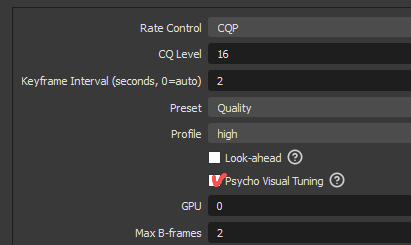
Look-ahead improves quality slightly but can hurt performance.
2.5 Check OBS Stats
Use the OBS “Stats” window to identify the problem:
- Rendering Lag → GPU overload → lower graphics or preset
- Encoding Lag → CPU overload → faster preset or switch to NVENC
- Dropped Frames → network issue → lower bitrate
2.6 Adjust Bitrate and FPS
If lag persists:
- Lower bitrate (e.g., from 6000 → 4500 kbps)
- Keep 60 FPS , but consider 30 FPS as a last resort
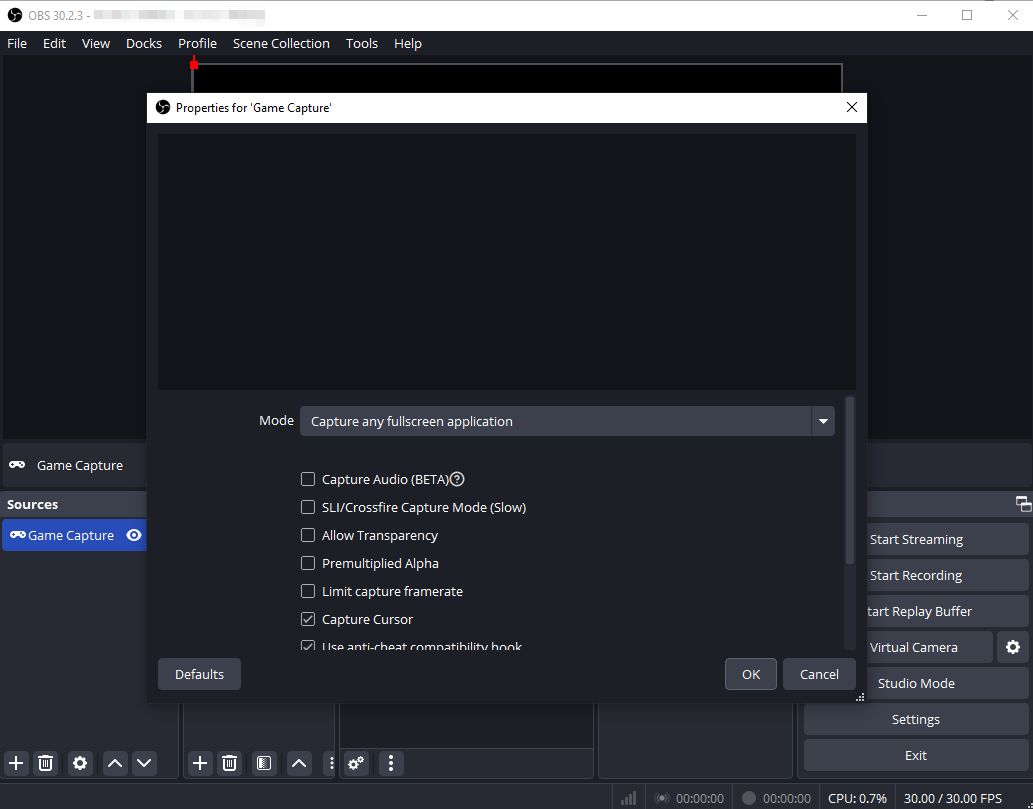
2.7 Use Game Capture Instead of Display Capture
Game Capture is more efficient and reduces system load compared to Display Captur
2.8 Set OBS Priority
- Go to Advanced settings
- Colocar Process Priority → Above Normal
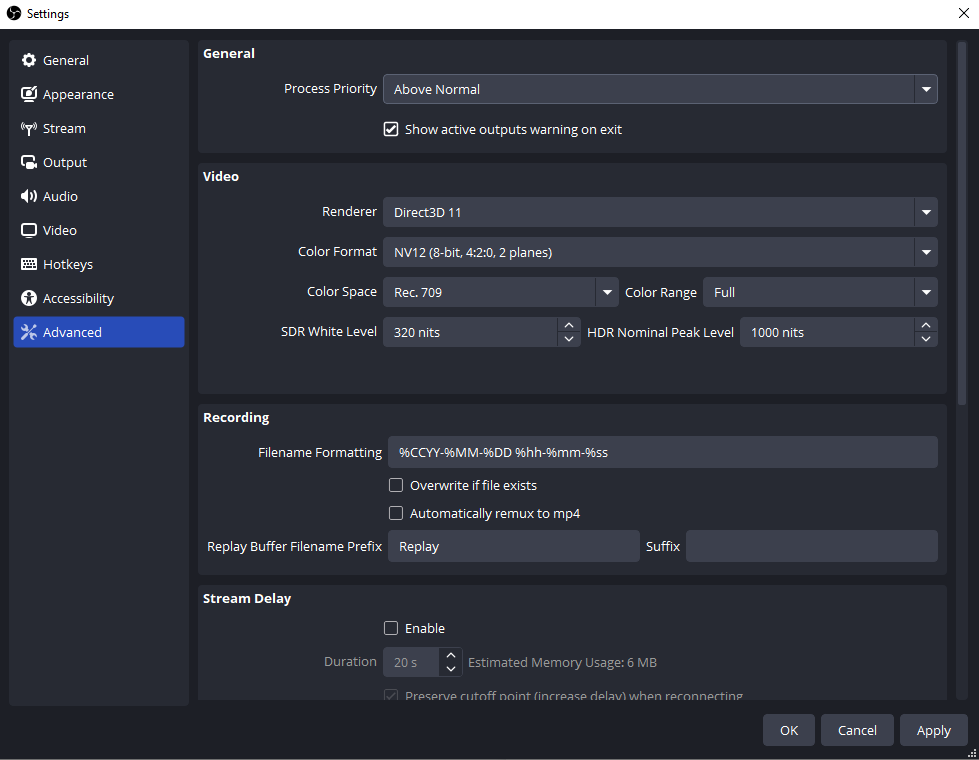
This ensures OBS gets enough resources.
3. Bonus: Try the Simple Alternative to OBS – Swyshare Recordit
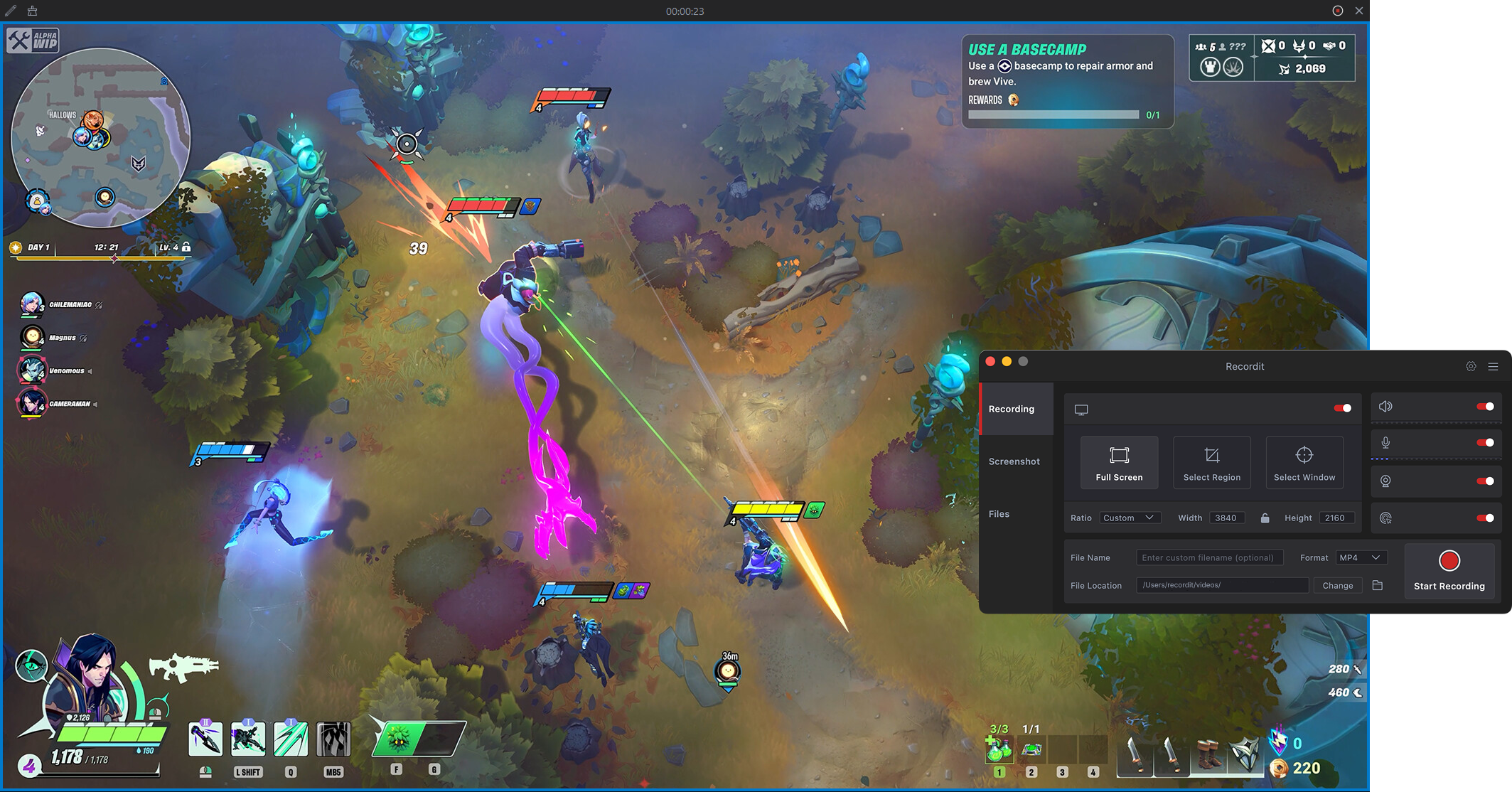
While OBS Studio offers powerful customization, it can be overwhelming—especially when troubleshooting issues like preset-related lag. If your main goal is recording gameplay smoothly without tweaking complex settings, Swyshare Recordit is a great alternative.
Características principales de Recordit :
- High-FPS Recording – smooth 60+ FPS gameplay capture
- Flexible Recording Modes – full screen, window, or custom area
- System Audio + Microphone – capture game sound and voice simultaneously
- Webcam Overlay – add facecam while recording
- Instant Replay – save last few seconds of gameplay highlights
- Scheduled Recording – start/stop recordings automatically
- Multiple Output Formats – MP4, GIF, MP3, high-resolution support
- Built-in Editor – trim, resize, add watermark easily
- One-Click Workflow – quick start/stop recording without complex setup
4. Conclusión
Lag caused by OBS presets is usually the result of overloading your CPU or GPU with settings that are too demanding. By choosing the right preset, lowering resolution, and optimizing system performance, you can eliminate stuttering and achieve smooth, high-quality video.
That said, if you find OBS too complex or time-consuming to configure, Swyshare Recordit offers a much simpler solution for recording gameplay. It allows you to skip the technical setup and focus on capturing your best moments without lag.
For users who value ease of use and reliable performance, Recordit is a practical and recommended alternative.