¿Por qué mi ordenador está tan lento de repente?

Is your computer suddenly running much slower than usual? Applications may take forever to open, web pages may lag, and even basic tasks like switching between windows can become frustrating. If your computer was working normally before but has recently become sluggish, you may wonder what went wrong.
In this article, we’ll explore the common reasons why your computer is really slow all of a sudden and share several effective solutions to restore its performance.
1. Why Is My Computer Really Slow All of a Sudden?
If your computer suddenly becomes sluggish, one or more of the following issues may be responsible:
- Too many background programs: Multiple applications running simultaneously can consume excessive CPU and RAM, leaving fewer resources for other tasks.
- Insufficient RAM: Running too many applications or browser tabs can exhaust available memory, causing freezing and slow responses.
- Low disk space: A nearly full system drive can make it harder for Windows to manage temporary files, updates, and virtual memory.
- Accumulated junk files: Temporary files, browser caches, application data, and old downloads can take up valuable storage space.
- Malware infections: Viruses, adware, and unwanted programs may run in the background and consume system resources.
- Windows updates: Background updates, indexing, and maintenance tasks can temporarily affect computer performance.
- Controladores obsoletos: Old or incompatible drivers may cause application crashes, system instability, and unexpected slowdowns.
- Overheating: Excessive heat can cause your CPU or GPU to reduce its operating speed to prevent hardware damage.
- Failing storage drive: An aging or damaged HDD or SSD can result in slow loading, freezing, and unexpected errors.
2. How to Fix a Slow Computer?
Once you understand the possible causes, try the following solutions to make your computer run smoothly again.
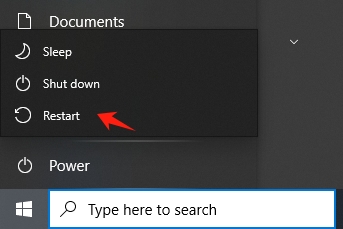
1) Restart Your Computer
Restarting can close stuck processes, clear temporary system states, and resolve minor software glitches. Save your work, open the Start menu, select Power, and click Restart.
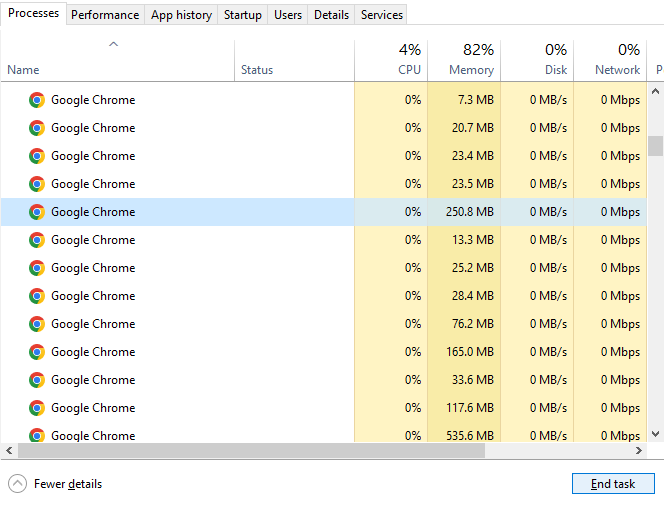
2) Close Unnecessary Background Programs
Use the Ctrl + Shift + Esc shortcut to access Task Manager and check which applications are consuming the most system resources. Identify unnecessary applications consuming excessive resources and select End task to close them.
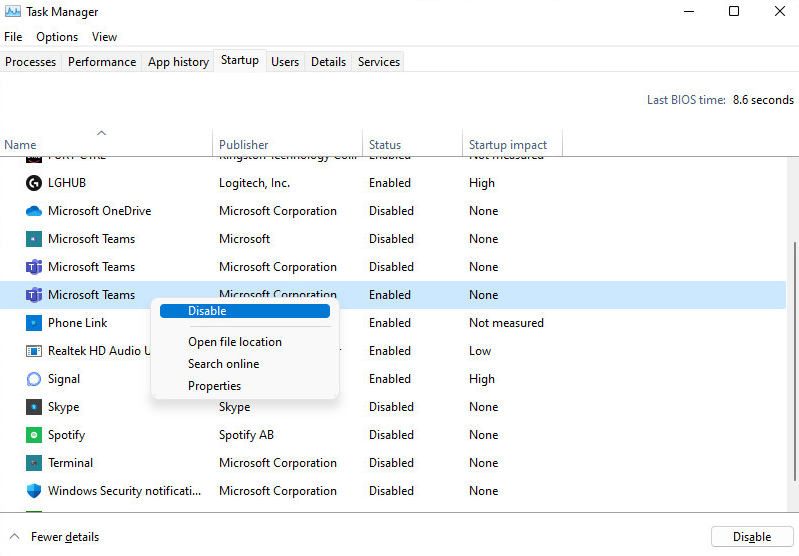
3) Disable Unnecessary Startup Programs
Too many startup applications can increase boot time and consume system resources. Open Task Manager, select Startup apps, review the list, and disable programs you don’t need to launch automatically.
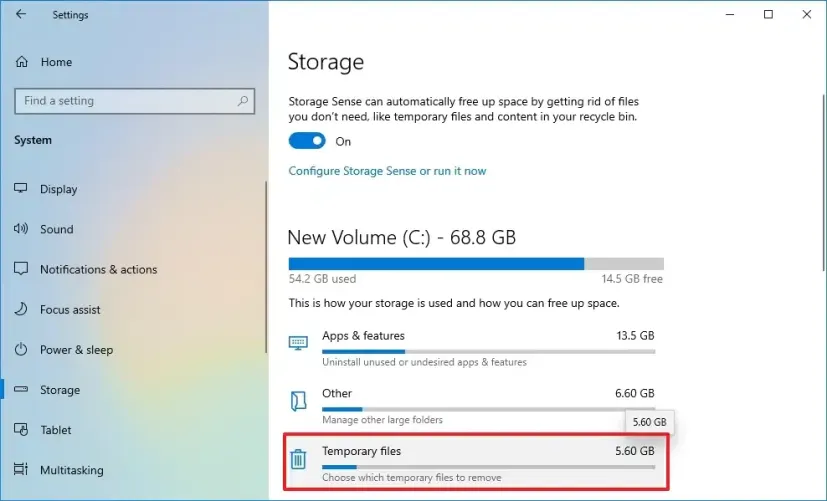
4) Free Up Disk Space
Remove unnecessary files to recover valuable storage space. Go to Settings > System > Storage > Temporary files, review the categories, select unwanted files, and click Remove files. You can also uninstall applications you no longer use.
5) Scan for Malware
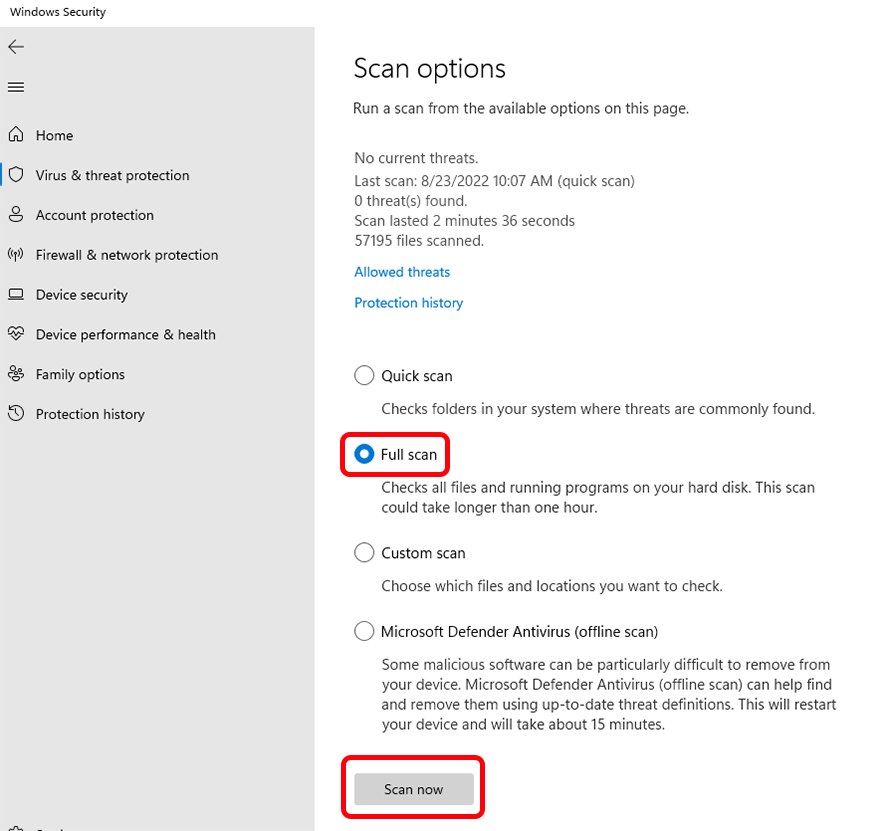
Malware can consume system resources and interfere with normal operations. Open Windows Security > Virus & threat protection > Scan options, select Full scan, and click Scan now. Follow the instructions to remove any detected threats.
6) Update Windows and Drivers
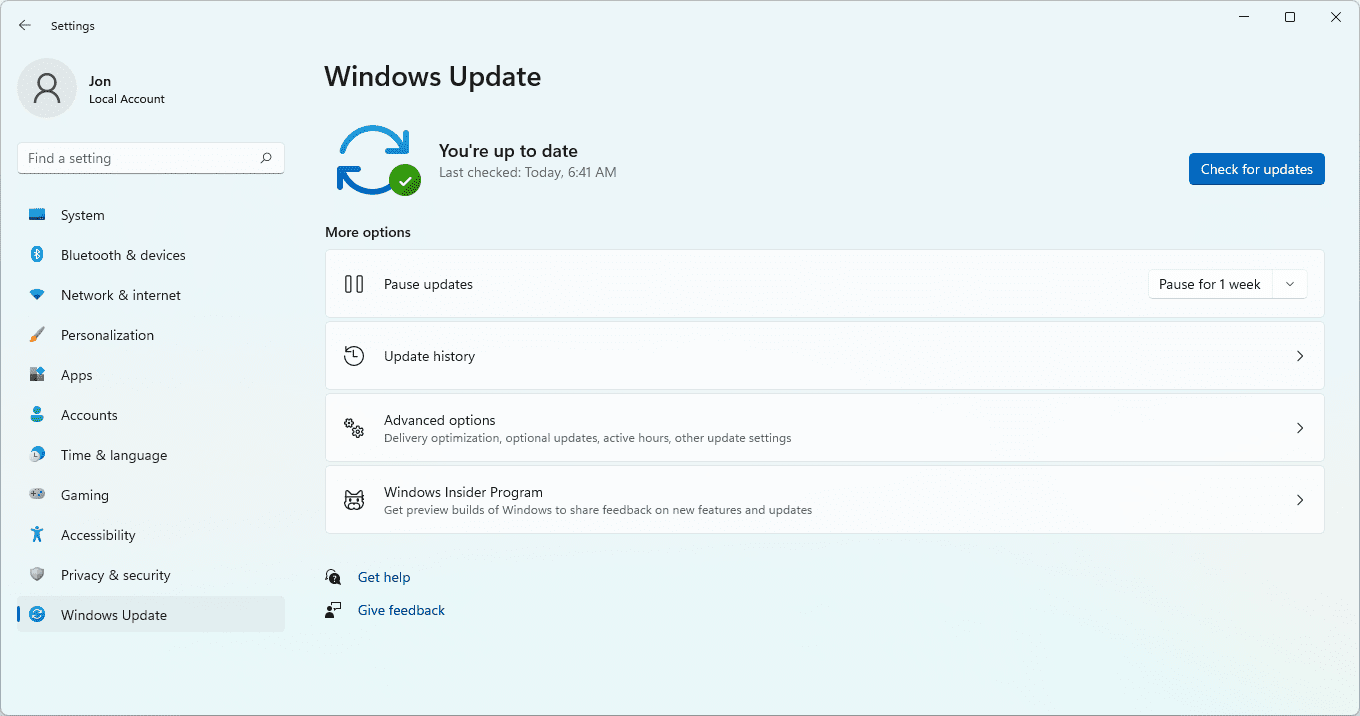
Outdated software and drivers can cause compatibility and performance problems. Open Settings > Windows Update, check for available updates, and install them. You should also update important drivers through your computer manufacturer’s official website.
7) Check for Overheating
If your computer gets unusually hot or its fans become noisy, overheating may be affecting performance. Keep ventilation openings clear, place your laptop on a hard surface, and remove dust from accessible vents.
8) Check Your Hard Drive
Storage drive problems can cause slow startup, freezing, and delayed file access. Use Windows’ built-in error-checking tools to inspect your drive. If you notice repeated errors or unusual noises from an HDD, back up important files and consider professional inspection.
3. Bonus: Clean Up and Optimize Your Computer with Swyshare CleanBee
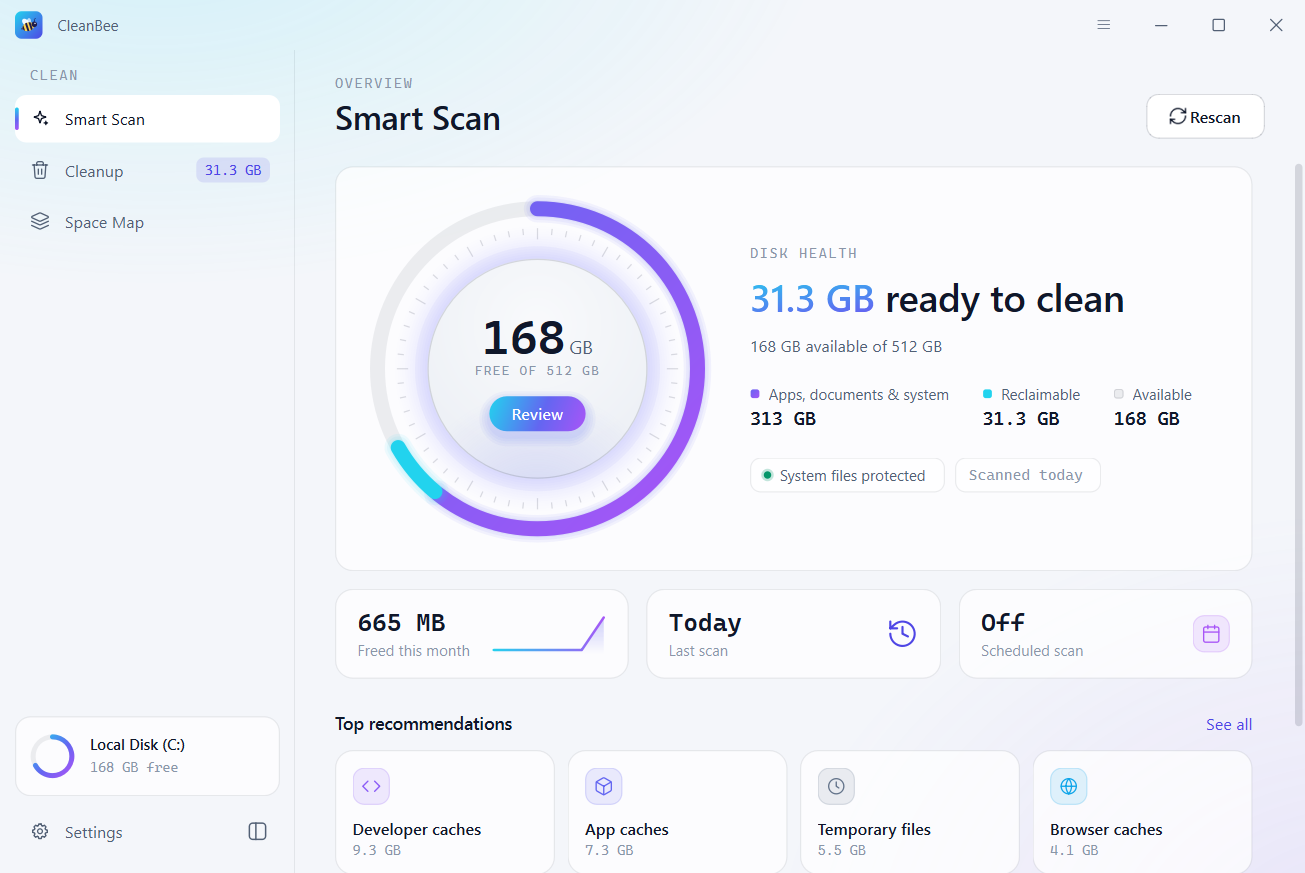
If accumulated junk files and unnecessary data are taking up too much storage space, Swyshare CleanBee is a convenient tool worth considering. It is a disk-cleaning utility for Windows and Mac that helps identify unwanted files, reclaim storage space, and keep your computer organized.
Instead of manually searching through different folders, CleanBee scans your computer and presents unnecessary files for review, making the cleanup process easier.
Características principales de Swyshare CleanBee :
- Smart Scan: Detect temporary files, application caches, browser caches, logs, crash reports, and old update files.
- Safe Cleanup: Review detected files before removing them. Cleaned files are moved to the Recycle Bin or Trash by default, allowing restoration.
- Space Map: Find large files, old downloads, videos, backups, and other items consuming valuable disk space.
- Mac System Data Cleanup: Analyze Mac System Data and identify old backups, Time Machine snapshots, and Xcode leftovers.
- Scheduled Scans: Schedule regular scans and set low-storage alerts to help monitor available disk space.
Cómo utilizar Swyshare CleanBee to Clean Your Computer:
- Download the appropriate version of CleanBee for your Windows or Mac computer, and complete the installation.
- Lanzamiento CleanBee and click Scan to identify temporary files, caches, logs, and other unnecessary data.
- Check the detected files and categories, then select the items you want to remove.
- Click Clean to move the selected items to the Recycle Bin or Trash and recover storage space.
- Review how much disk space you’ve recovered and continue monitoring your storage.
4. Conclusión
A computer that suddenly becomes slow can be frustrating, but the problem doesn’t necessarily mean you need new hardware. Too many background programs, insufficient memory, low disk space, malware, outdated drivers, and overheating are common causes of unexpected slowdowns. By restarting your computer, closing unnecessary applications, freeing up storage, and updating your system, you can often restore its performance.
For an easier way to manage unnecessary files and reclaim valuable disk space, Swyshare CleanBee is our recommended cleanup tool. Its Smart Scan, Safe Cleanup, Space Map, and scheduled scanning features make it easier to identify unwanted data and keep your storage organized. Give CleanBee a try to clean up your computer, free up disk space, and maintain a tidier system.